




What you receive after signing
A few minutes after signing, you receive an email with your signed document attached. Here it is in full, with the 3 steps to upload it without mistakes.
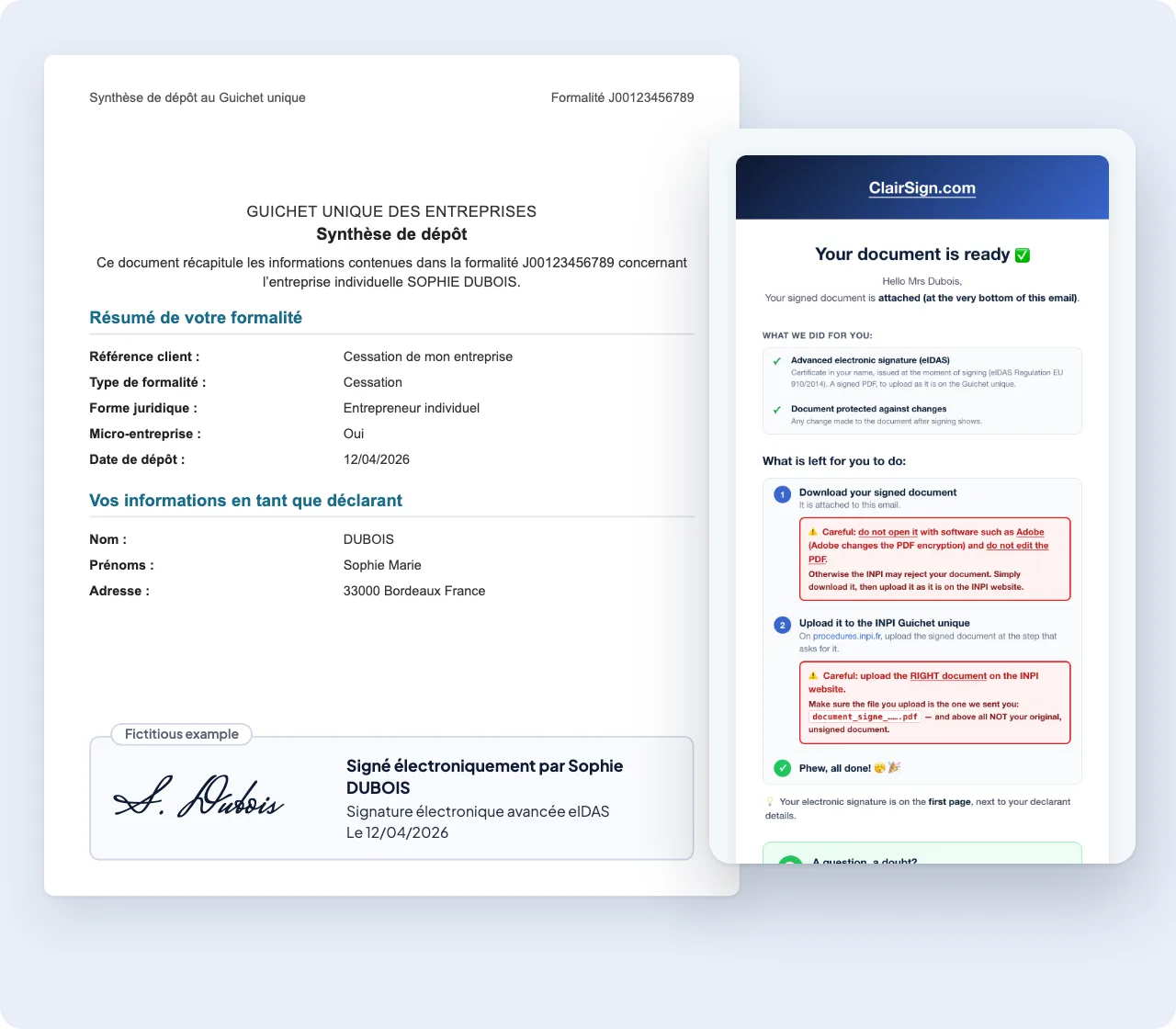
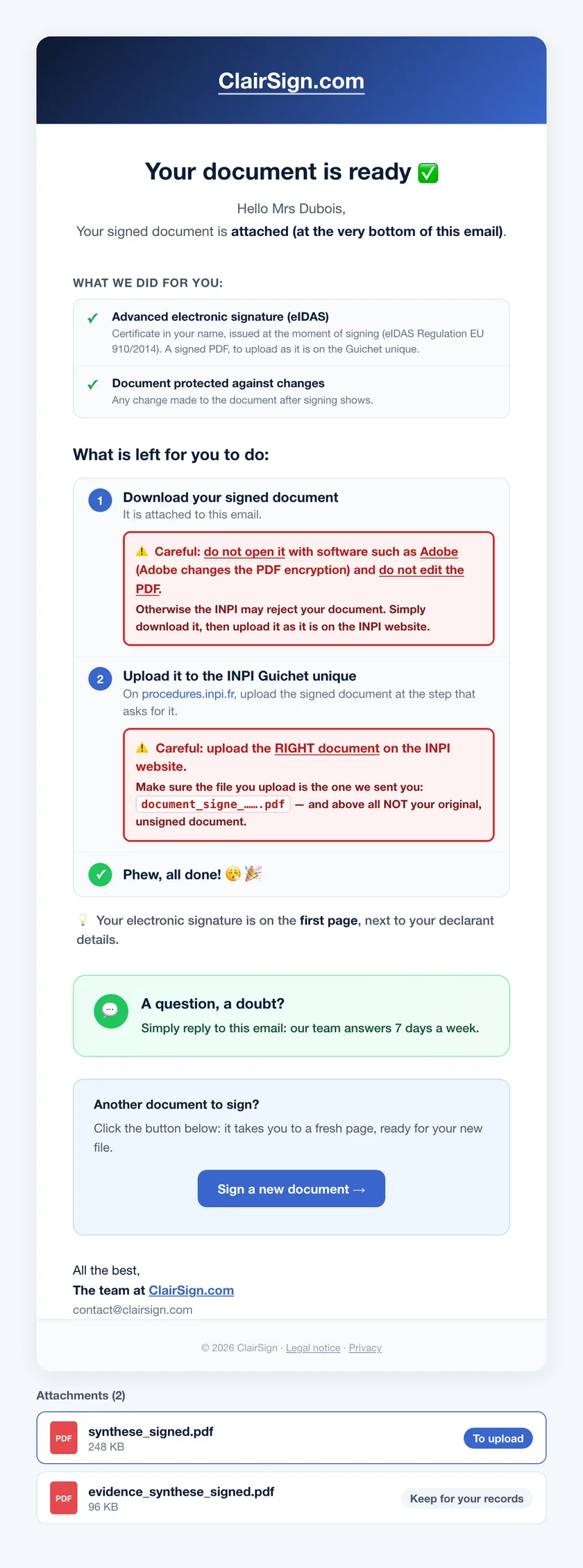
The email comes from contact@clairsign.com. Add this address to your contacts so it doesn’t land in your spam folder.
Nothing after 10 minutes? Check your spam folder, then email us: we’ll send your document again.
What’s left for you to do
See the full email ↓- 1Download your signed document
Save the signed document as it is. Don’t open it to edit it, or with software that re-saves it: the Guichet unique (the INPI online portal) could reject it.
- 2Upload it to your filing
Go back to procedures.inpi.fr, to the signed document step, and upload the file ending in
_signed.pdf. Keep the one starting withevidence_for yourself. - 3All done
Your filing is now being processed by the Guichet unique. Keep the email: it contains your document if you need it later.
Simply reply to the email: our team looks at your case and replies, 7 days a week.
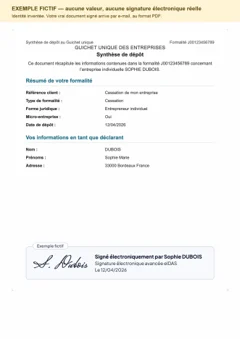 See an example outputFictitious signed document, made-up name , 1 page
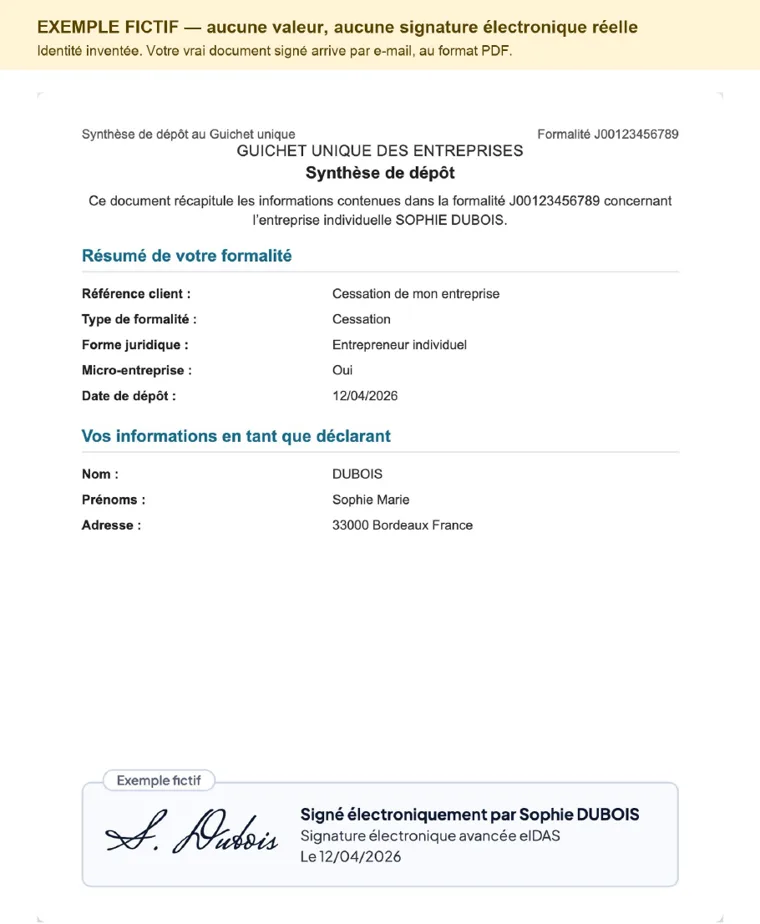
What your signed document looks like
- 1Your document, unchanged
The content of your summary document stays the same: only the signature is added.
- 2The visible signature
Your signature, your name and the date appear on the first page.
- 3The signature inside the file
It is also stored inside the PDF: your PDF reader shows it in its signature panel.
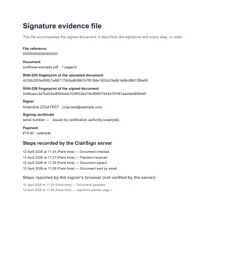
- Who signed, when, with which certificate
- The document’s fingerprint before and after signing
- Every step, in order: upload, payment, signature
evidence_… file attached to the same email. Keep it for yourself: do not file it on the Guichet unique.See an example of the file (PDF)Check your signature yourself
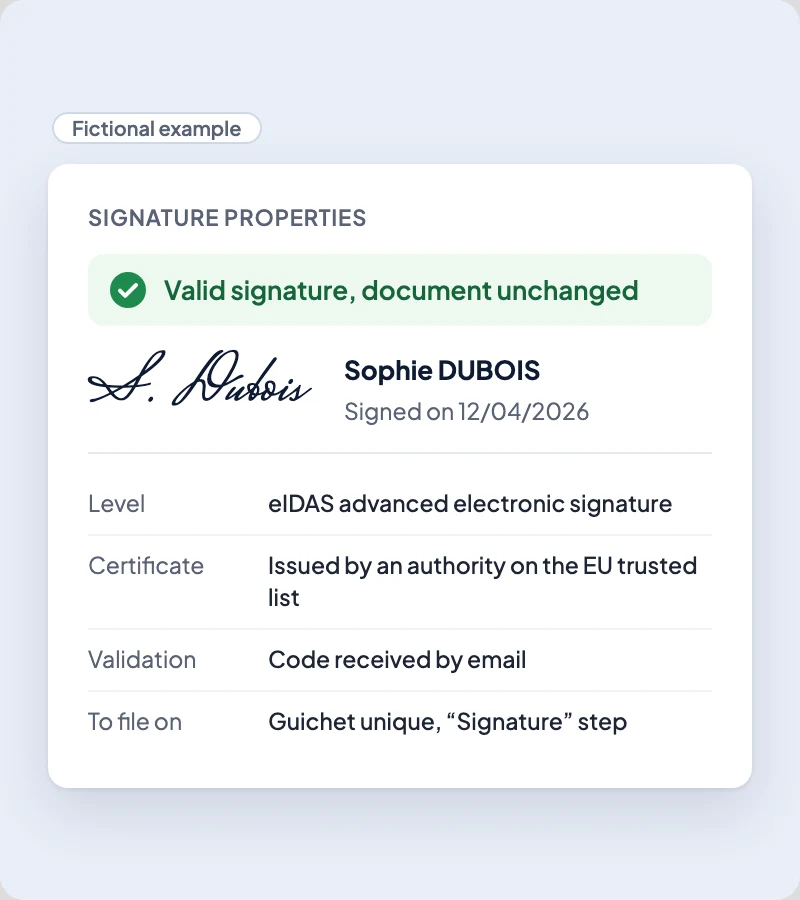
- 1Open a copy of the PDF in a PDF reader
Adobe Acrobat Reader, free, on a computer or a phone. Check a copy and always file the document you received by email: a re-saved PDF may be rejected by the Guichet unique.
- 2Open the signature panel
In Acrobat Reader, click “Signature Panel” at the top of the document.
- 3Read what is shown
Your name, the date of signature and the authority that issued the certificate. If the reader reports a change after signing, do not file this document: email us.
Questions about delivery
How long after signing?

Usually a few minutes. Remember to check your spam folder if nothing arrives.
I haven’t received the email. What should I do?
Check the address you entered and your spam folder, then email us from the Help page: we’ll send your document again.
Is the Guichet unique rejecting my signed document?
Make sure you’re uploading the PDF you received, without having opened it to edit it. If it’s still rejected, reply to the email: we’ll look at your case.
Where is my signature in the document?
On the first page, next to your declarant details. It is also recorded inside the PDF.
How do I check my electronic signature?
Open a copy of the PDF in a PDF reader such as Adobe Acrobat Reader (free), then its signature panel: your name, the date of signature and the authority that issued the certificate are shown. Then file the document you received by email, never a re-saved copy. If the reader reports a change after signing, write to us.
Sign your document now.
Upload your summary document, sign and receive your signed document by email. It’s simple, secure and built for the Guichet unique.

Advanced electronic signature (eIDAS) for your filings on the INPI Guichet unique.
Our team replies 7 days a week, by email.
 Write to us



Exact amount shown before you pay, with no hidden fees.